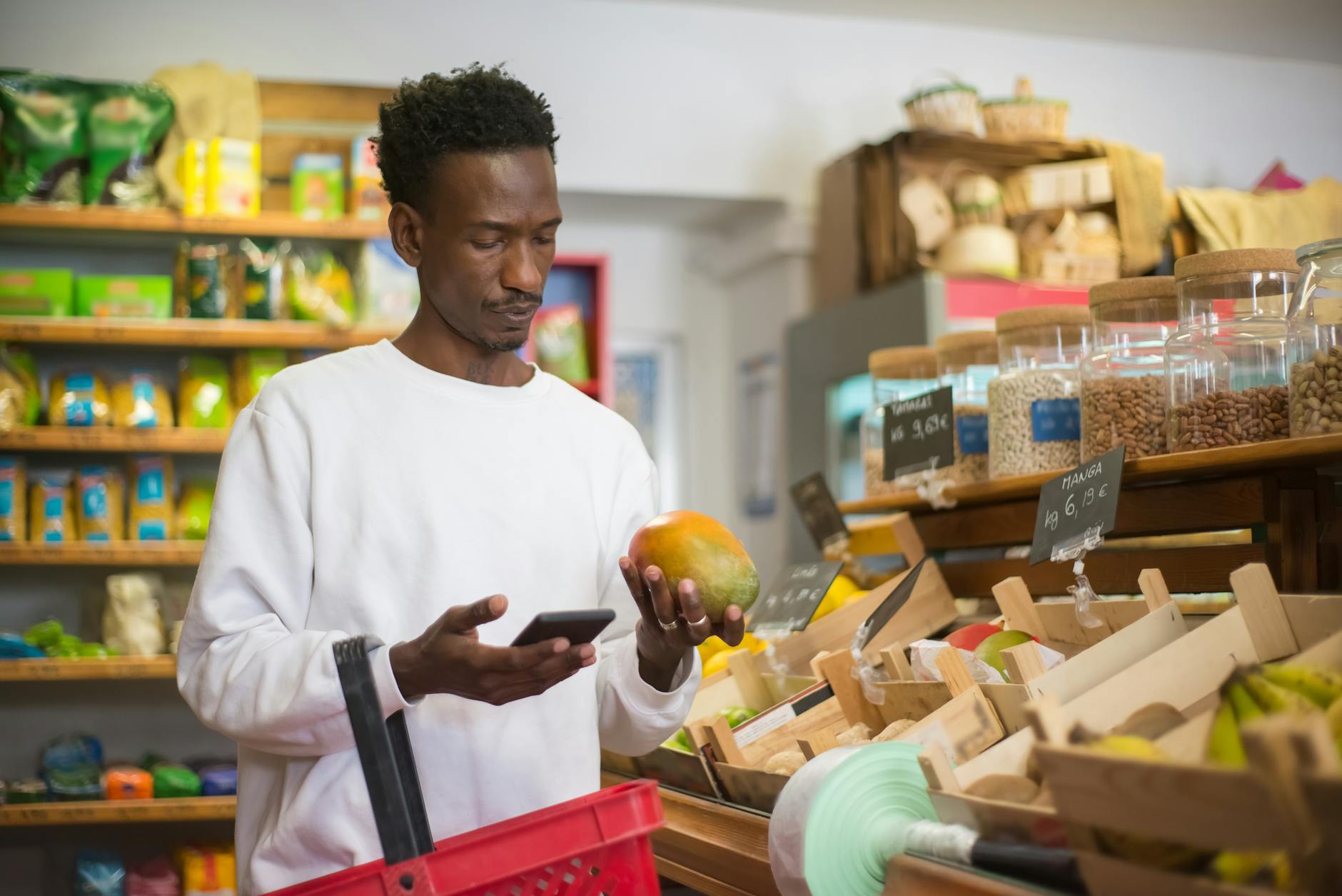

Standing in the middle of a Tokyo supermarket, staring at rows of mysterious packages with indecipherable labels, millions of travelers face the same frustrating moment every day. That jar of what looks like jam could be anything from fermented beans to spicy paste. Google Translate’s camera feature transforms this guessing game into confident shopping, letting you instantly decode foreign text through your smartphone screen.
What You Need to Know
Google Translate’s camera feature uses optical character recognition (OCR) to translate text in real-time through your phone’s camera. The technology works with over 100 languages and doesn’t require an internet connection for many language pairs once you’ve downloaded the offline packages. This makes it perfect for international supermarkets where WiFi might be spotty or expensive.
The feature works best with clear, printed text on packaging, signs, and labels. While handwritten text recognition has improved significantly, printed materials like product labels, ingredient lists, and price tags deliver the most accurate results. Battery drain can be significant when using the camera continuously, so consider bringing a portable charger for extended shopping trips.
Step 1: Download and Set Up the Google Translate App
Start by downloading the free Google Translate app from your device’s app store if you haven’t already. The app requires iOS 12.0 or later for iPhones, or Android 6.0 and up for Android devices. Once installed, open the app and allow camera permissions when prompted.
Navigate to the camera icon at the bottom of the screen. The first time you use this feature, the app will guide you through a brief tutorial showing how to point your camera at text. Don’t skip this – it demonstrates useful gestures like tapping to focus on specific words and using the pause button to freeze translations.
For international travel, download offline language packages before your trip. Tap the settings menu, select “Offline translation,” and download the language pairs you’ll need. A Japanese offline package takes about 59MB, while Spanish requires around 43MB. These packages enable translation without internet connection, crucial when you’re navigating foreign supermarkets with limited data plans.
Step 2: Select Your Language Pair
Before entering the supermarket, set up your source and target languages. In the camera view, you’ll see two language options at the top of the screen. The left side shows the language you’re translating from (the foreign language on products), while the right side shows your preferred language.
Tap either language to open the selection menu. For popular travel destinations, common pairs include Japanese to English, French to English, or Spanish to English. The app automatically detects many languages, but manual selection ensures accuracy, especially with similar scripts like Chinese and Japanese characters.
Use the swap icon between the two languages to quickly reverse translation direction. This proves handy when you want to show store employees translated text in their language, or when comparing similar products with text in different languages.
Step 3: Master the Camera Translation Modes
Google Translate offers three camera modes, each suited for different supermarket scenarios. The instant translation mode provides real-time overlay translation as you move your camera around. This works perfectly for quickly scanning shelves and reading aisle signs, though the constant text overlay can feel overwhelming in busy environments.
Scan mode works better for detailed product examination. Point your camera at a product label and tap the shutter button. The app captures the image and provides a more stable translation overlay. You can tap individual translated words for additional context or alternate translations, useful when dealing with cooking terms or regional food names.
The newest addition, conversation mode, helps when you need to communicate with supermarket staff. While primarily designed for spoken conversation, you can type questions and show the translated text to employees, bridging language gaps when you need help finding specific items.
Step 4: Navigate Product Labels Effectively
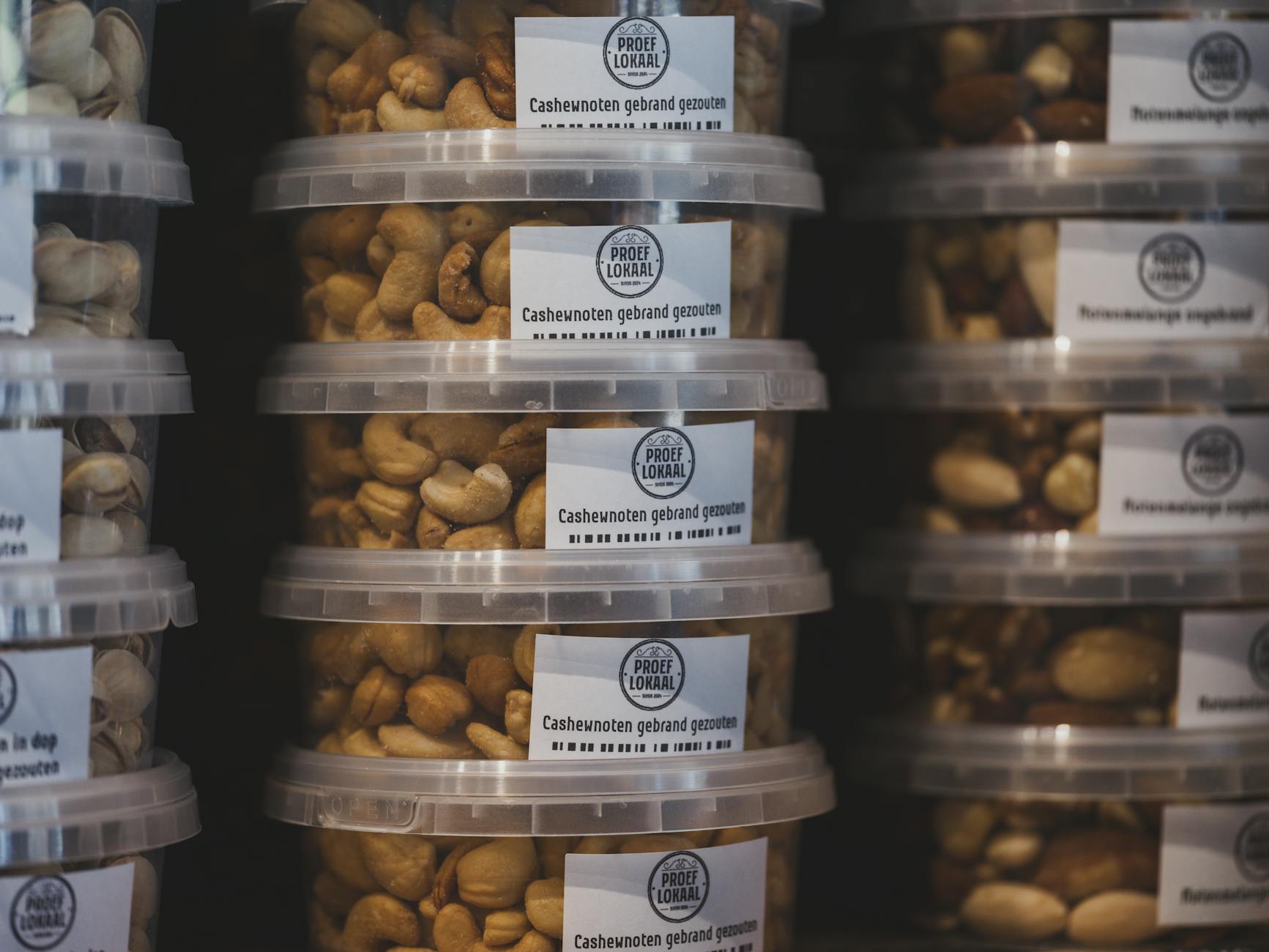
Foreign product labels contain crucial information beyond basic descriptions. Start with the product name, typically displayed prominently on the front. Hold your camera steady about 6-8 inches from the text for optimal recognition. Closer distances often blur the text, while farther positions make small text unreadable.
Move to ingredient lists, usually found on the back or side panels. This proves essential for travelers with dietary restrictions or allergies. The camera feature excels at translating ingredient lists, though some specialized terms might require additional research. When you encounter unfamiliar translated ingredients, take a screenshot for later verification.
Pay attention to expiration dates, which follow different formats globally. In Japan, dates appear as year/month/day, while European products typically use day/month/year formatting. The translation overlay will convert these dates, but understanding the original format prevents confusion.
Nutritional information translates reliably, helping health-conscious travelers make informed choices. Look for terms like “calories,” “sodium,” or “sugar” in the translated text. Many international products use familiar nutritional terms that translate directly, making comparisons straightforward.
Step 5: Decode Store Signage and Navigation
Supermarket signage extends beyond individual products to include aisle markers, department signs, and promotional materials. Use the instant translation mode to navigate efficiently through unfamiliar store layouts. Overhead aisle signs typically use clear, large fonts that translate accurately.
Department signs for produce, dairy, meat, and frozen foods translate consistently across languages. However, be aware that store organization varies culturally. Japanese supermarkets often separate fresh and packaged goods differently than American stores, while European markets might group items by meal type rather than ingredient category.
Promotional signs and sale indicators deserve special attention. Terms like “special price,” “limited time,” or “buy two, get one” translate clearly and help identify deals. Some promotions use cultural references or wordplay that might not translate literally, but the general meaning usually comes through.
Step 6: Handle Common Translation Challenges
Certain situations challenge even advanced translation technology. Reflective packaging, curved surfaces, and small fonts can reduce accuracy. When facing difficult text, try different angles and distances. Sometimes stepping back and capturing a wider view produces better results than focusing tightly on problematic words.
Cultural food terms often lack direct translations. “Umami” doesn’t translate to a single English word, while regional specialties might appear as phonetic translations rather than descriptive ones. When encountering unclear translations, look for visual cues on packaging or ask fellow shoppers for guidance.
Multiple languages on single products, common in tourist areas or international brands, can confuse the recognition system. Use your finger to cover unwanted text sections, or manually select the detection language for each section you want to translate.
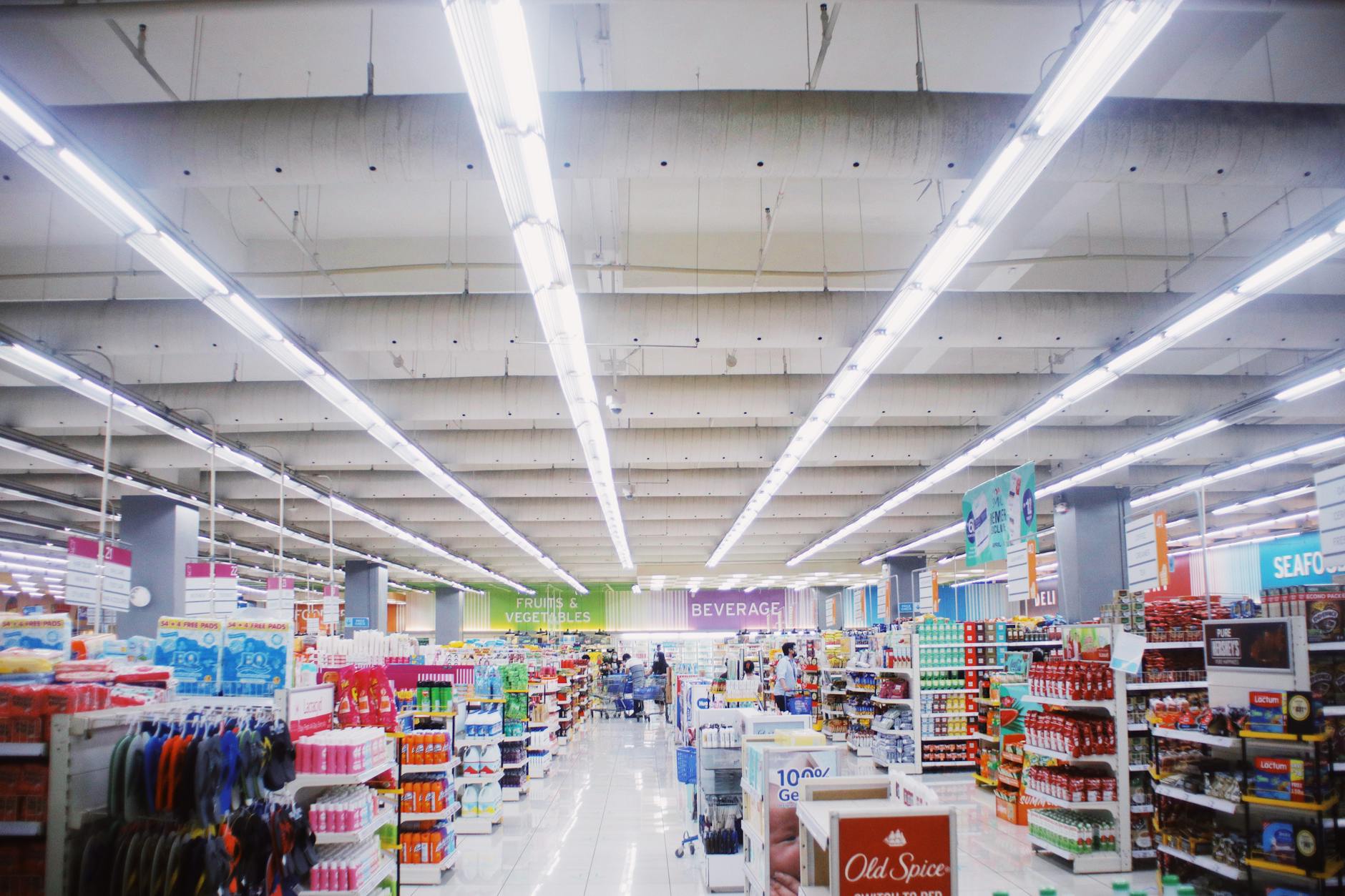
Technology integration enhances your shopping efficiency beyond translation. While using Google Translate for product information, consider pairing it with travel apps for complete trip management. Smartwatches provide convenient access to flight updates while your hands stay free for shopping and translation tasks.
Key Takeaways
Google Translate’s camera feature transforms foreign supermarket shopping from guesswork into informed decision-making. Success depends on preparation: download offline language packages, understand the different camera modes, and practice with clear, printed text before tackling complex product labels.
The technology works best when you maintain reasonable expectations. While instant translation handles most supermarket scenarios excellently, complex cultural terms or artistic fonts might require additional context. Combine the translation tool with visual cues, fellow shopper assistance, and basic cultural research for the most effective shopping experience.
Remember that translation accuracy continues improving as Google updates the underlying technology. Features that seem challenging today often work seamlessly in future app versions, making international travel increasingly accessible for adventurous food explorers and practical grocery shoppers alike.
Frequently Asked Questions
Can Google Translate camera work without internet in foreign supermarkets?
Yes, after downloading offline language packages, the camera feature works without internet connection for many language pairs.
What types of text work best with Google Translate’s camera feature?
Clear, printed text on product labels, signs, and packaging provides the most accurate translations compared to handwritten text.