
What You Need to Know
Poor hotel Wi-Fi can derail your travel plans faster than a flight delay. Whether you’re uploading photos from your European adventure or joining an important video call from a remote coffee shop, smartphone hotspots offer a reliable backup that keeps you connected anywhere your phone gets signal.
Modern smartphones pack impressive hotspot capabilities, turning your device into a portable internet hub that can support multiple devices simultaneously. The key lies in knowing how to set it up properly, manage your data consumption, and troubleshoot common connectivity issues before they leave you stranded offline.
1. Check Your Mobile Plan and Data Limits
Before activating your hotspot, verify your carrier’s policies on mobile hotspot usage. Most unlimited plans include hotspot data, but with important caveats. Verizon typically provides 15-30GB of high-speed hotspot data before throttling speeds, while T-Mobile offers similar amounts depending on your plan tier.
International travelers face additional considerations. Your domestic hotspot allowance may not apply overseas, and international data rates can reach $10-15 per megabyte without proper planning. Contact your carrier about international plans or consider purchasing a local SIM card at your destination.
Document your current data usage patterns before traveling. If you typically use 20GB monthly at home, expect higher consumption while traveling as you rely more heavily on your phone for navigation, translation apps, and entertainment.
2. Enable and Configure Your Smartphone Hotspot
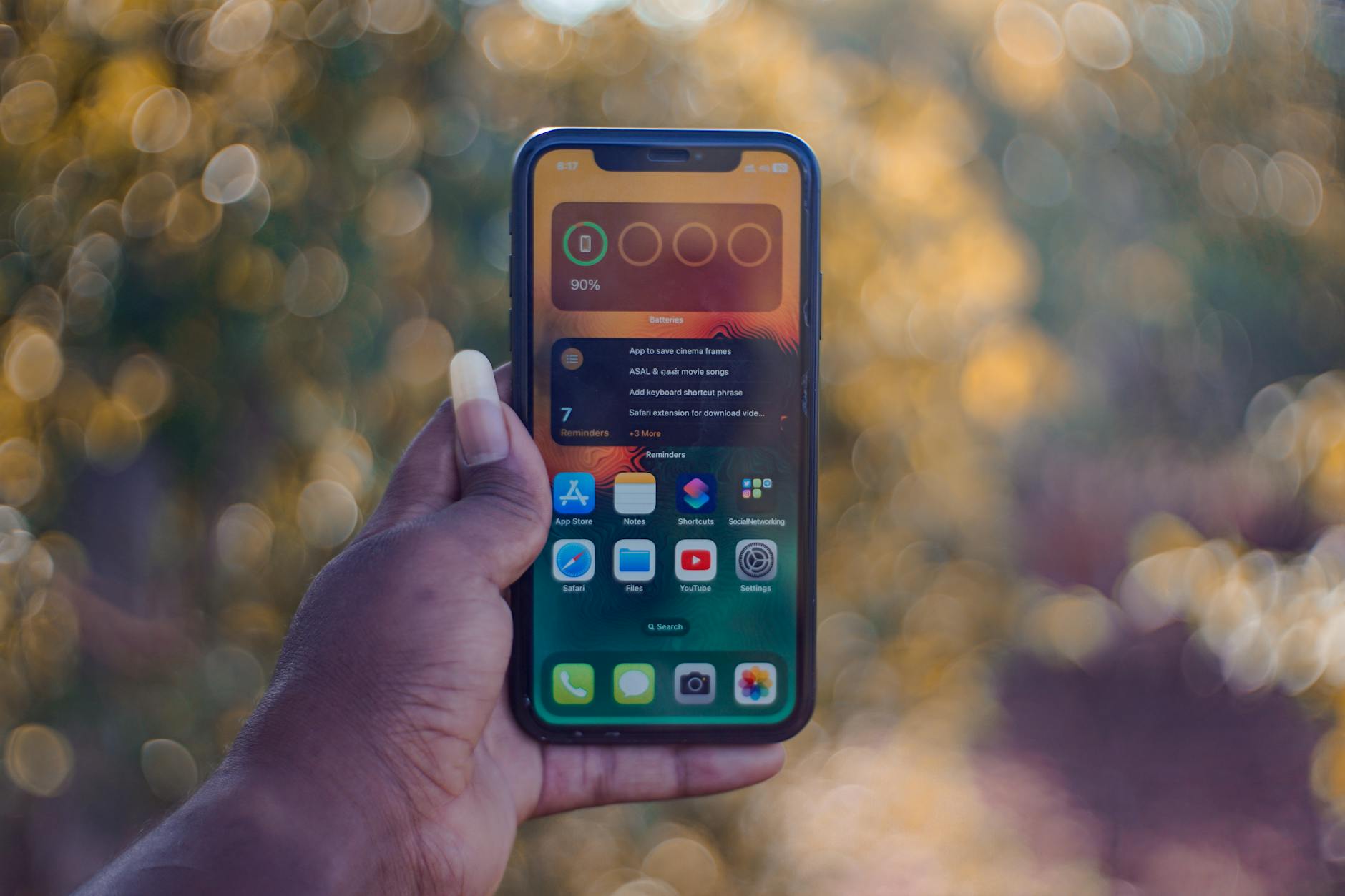
iPhone users can access hotspot settings through Settings > Personal Hotspot. Toggle the feature on and note the default network name and password displayed. For better security, tap “Wi-Fi Password” to create a custom password using letters, numbers, and symbols.
Android users will find hotspot controls under Settings > Network & Internet > Hotspot & Tethering > Wi-Fi Hotspot. Samsung devices may show this as “Mobile Hotspot” in the quick settings panel. Like iPhone, you can customize the network name and password for easier identification and security.
Choose a network name that helps you identify your hotspot in crowded areas. “JohnTravel2024” works better than the generic names carriers often assign. Set a password that balances security with convenience – you’ll be entering it frequently on multiple devices.
3. Optimize Hotspot Settings for Travel
Adjust your hotspot’s frequency band based on your surroundings. The 2.4GHz band offers better range and wall penetration, ideal for hotel rooms or cafes. The 5GHz band provides faster speeds but shorter range, perfect when devices are close to your phone.
Most smartphones allow you to limit the number of connected devices. For solo travel, set this to 2-3 devices maximum. Large groups sharing one hotspot should designate multiple phone owners to create separate networks, distributing the load and conserving individual data allowances.
Enable automatic hotspot timeout in your phone’s settings. This feature turns off the hotspot after 10-15 minutes of inactivity, preventing unnecessary battery drain and data usage when you forget to disable it manually.

4. Connect Your Devices Strategically
Prioritize which devices connect to your hotspot based on your immediate needs. Laptops typically consume the most data, especially during video calls or file uploads. Tablets fall in the middle range, while e-readers and basic smartphones use minimal data for email and messaging.
When connecting multiple devices, establish a hierarchy. Connect your laptop only when necessary for work tasks, then disconnect it when switching to leisure activities on your tablet. This approach maximizes your available data across all devices throughout your trip.
Consider device-specific data limits if your phone allows it. Some Android phones let you set monthly data limits for connected devices, automatically disconnecting them when they reach specified thresholds.
5. Monitor and Manage Data Consumption
Most smartphones provide real-time hotspot data tracking in their settings menus. iPhone users can check usage under Settings > Cellular > Personal Hotspot. Android users typically find this information in Settings > Network & Internet > Data Usage > Hotspot & Tethering.
Download data monitoring apps like My Data Manager or GlassWire for more detailed tracking. These apps can alert you when approaching data limits and identify which connected devices or apps consume the most data.
Implement data-saving strategies across all connected devices. Disable automatic updates, reduce video streaming quality, and use offline modes whenever possible. Many apps, including Google Translate’s camera feature, offer offline functionality that reduces your reliance on constant connectivity.
6. Extend Battery Life During Extended Use
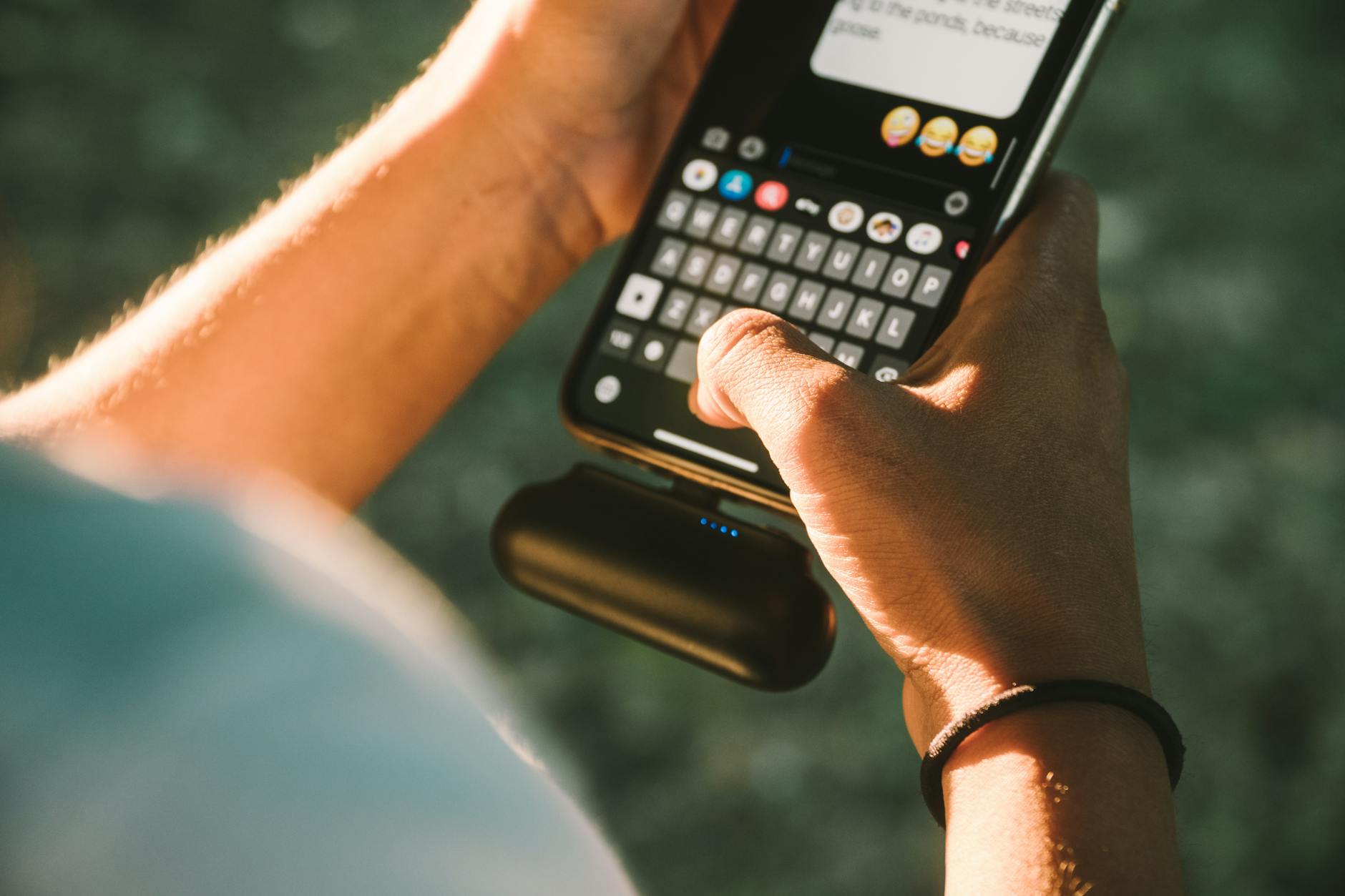
Hotspot functionality drains your phone’s battery rapidly, often reducing normal battery life by 50-70%. Carry a portable battery pack with at least 10,000mAh capacity – enough to fully recharge most smartphones twice.
Reduce your phone’s screen brightness and close unnecessary background apps while using hotspot mode. Enable your phone’s battery saver mode, which typically extends battery life by limiting background processes and reducing performance slightly.
Consider investing in a dedicated mobile hotspot device for extended trips. Devices like Verizon’s Jetpack or AT&T’s MiFi offer longer battery life and often include larger data allowances specifically for hotspot usage.
7. Troubleshoot Common Connection Issues
When devices won’t connect to your hotspot, start with the basics. Verify the network password, ensure your phone’s hotspot is still active, and check that you haven’t exceeded the maximum number of connected devices.
Restart both your smartphone and the device attempting to connect. This simple step resolves connectivity issues in roughly 60% of cases, clearing temporary software glitches that prevent proper handshaking between devices.
If speeds seem unusually slow, check your phone’s signal strength. Hotspot performance directly correlates with your cellular connection quality. Move to a location with better cell tower coverage, often near windows in buildings or higher elevations outdoors.
Key Takeaways
Smartphone hotspots transform your mobile device into a reliable internet source that keeps you connected during travel adventures. Success depends on understanding your carrier’s data policies, optimizing settings for your specific needs, and managing consumption across multiple devices.
The most effective approach combines proper preparation with smart usage habits. Check your plan details before departing, configure secure network settings, and monitor data consumption throughout your trip. These practices ensure your hotspot remains available when you need it most.
Remember that hotspot usage significantly impacts battery life and data consumption. Plan accordingly with portable chargers and data-saving strategies. When combined with other travel tech tools like smartwatches for flight updates, smartphone hotspots become an essential component of modern travel connectivity.
Frequently Asked Questions
How much data does using a smartphone hotspot consume?
Data consumption varies by activity – basic email uses minimal data while video streaming can consume 1-3GB per hour depending on quality settings.
Can I use my smartphone hotspot internationally?
Hotspot availability varies by carrier and plan. Check with your provider about international data policies and consider local SIM cards for extended travel.